How to Convert PNG to JPG in Your Browser (No Upload Needed)
Learn the fastest, most private way to convert PNG images to JPG — entirely in your browser, with no uploads, no accounts, and no quality loss.
Why convert PNG to JPG?
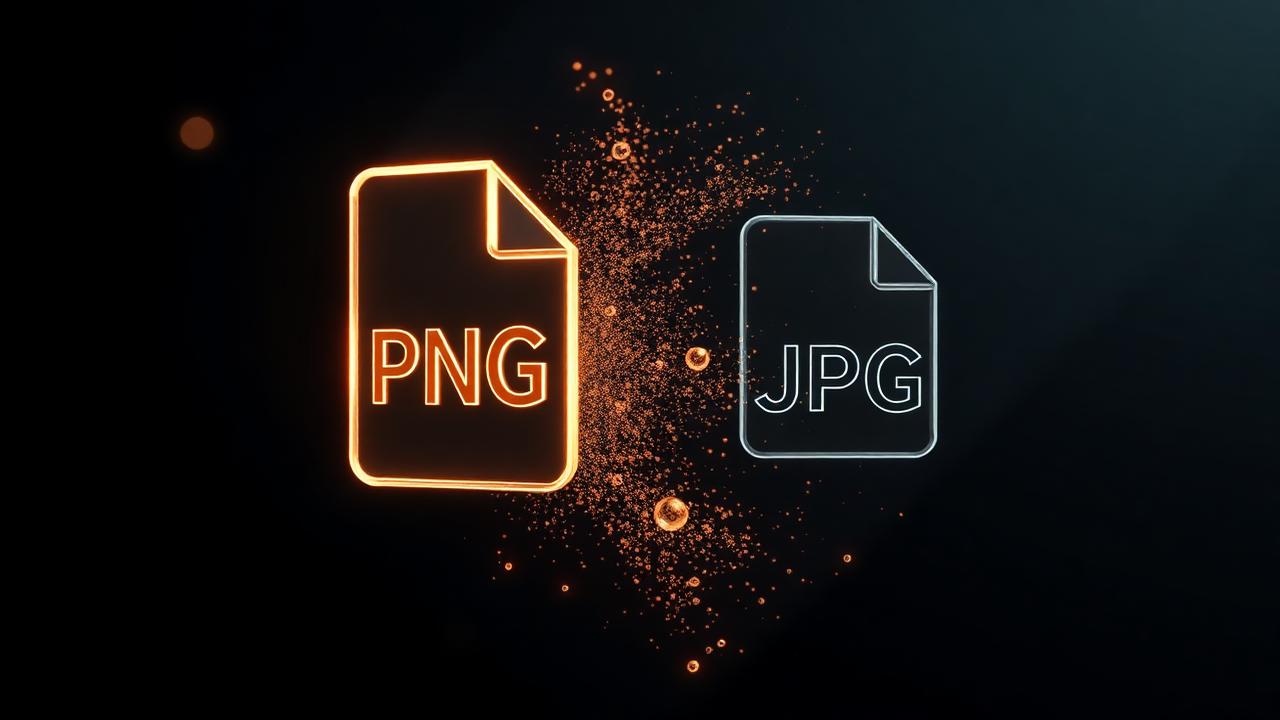
PNG is a lossless format — perfect for screenshots, logos, and graphics with transparency. But that fidelity comes at a cost: file sizes are often 5–10× larger than the equivalent JPG. A 4 MB PNG screenshot routinely shrinks to 400 KB as JPG with no visible difference. When you're emailing photos, uploading to a website, attaching to a Jira ticket, or saving storage on your phone, JPG is usually the smarter choice.
The privacy problem with online converters
Most "free" online converters upload your files to a remote server, run the conversion, then send the result back. Your images sit on someone else's machine — sometimes for hours, sometimes indefinitely. For personal photos, ID scans, medical reports, or confidential product mockups, that's a real risk. We wrote a longer breakdown of this in Why Browser-Based File Conversion Is Safer.
The browser-based alternative
Modern browsers ship with a powerful image engine built right in. Using the HTML Canvas API, we can decode a PNG, redraw it onto a canvas, and re-export it as a JPG — all without a single byte leaving your device. You can verify this yourself: open DevTools → Network before you convert. There are no outbound requests carrying your image data.
How to do it with onlinefileconverter
- Open our PNG to JPG converter.
- Drag your PNG file into the dropzone (or click to browse).
- Pick your JPG quality (we default to 90%, which is visually identical to the original on almost every photo).
- Hit Convert and download the result instantly.
If you have hundreds of files, drop them all at once — they convert in parallel using your CPU.
Tips for the best quality
- Watch the background. JPG doesn't support transparency. Anything transparent in your PNG will become white by default (or whatever background color you choose). For logos meant to sit on a colored UI, keep them as PNG or convert to WebP instead.
- Use 90% quality. The sweet spot between file size and visual fidelity for most photos. Drop to 80% if file size is critical (email under 1 MB, mobile uploads on slow networks).
- Batch convert. Drop multiple PNGs at once — they'll convert in parallel using your CPU.
- Skip re-encoding if the source is already a JPG. Every JPG save loses a little quality. If your "PNG" is actually a JPG someone renamed, work from the original instead.
Common use cases
Most people who land on this guide are doing one of a few specific things:
- Shrinking screenshots before emailing them. A full-page macOS or Windows screenshot saved as PNG is usually 2–6 MB. Converted to JPG at 85%, it drops to 200–400 KB without anyone noticing the difference.
- Posting photos to platforms that prefer JPG. Instagram, WhatsApp Web, and most e-commerce CMSes optimize JPG aggressively and treat PNG as a heavier upload.
- Cleaning up downloaded assets. Many stock-photo sites deliver PNG by default even when the source is a photo; converting recovers a lot of bandwidth.
- Preparing photos for government forms. Most Indian portals (UPSC, SSC, IBPS, Aadhaar) only accept JPG — see our government-forms image guide for the exact specs.
PNG vs JPG: a quick mental model
Use PNG when the image has sharp edges, transparency, or text rendered as pixels (UI mockups, icons, screenshots of code). Use JPG when the image is a photo, a screenshot of a real-world scene, or anything where smooth color gradients dominate. WebP, covered in our image-format guide, can replace both in most modern browsers.
FAQ
Does converting PNG to JPG lose quality? Technically yes — JPG is lossy. In practice, at 90% quality the loss is invisible to the naked eye on photographic content, and you typically save 80% of the file size.
Can I keep transparency? No, not in JPG. If transparency matters, convert to PNG → WebP instead, which keeps the alpha channel and still shrinks the file.
Is there a file-size limit? Not from us. The only ceiling is your device's RAM. Phones handle 20–30 MB images comfortably; laptops handle 100 MB+.
Does it work offline? Yes. Load the page once, then disconnect — conversions still run.
That's it. No signup, no waiting room, no privacy worries — just instant conversion right where your file already lives.
Keep learning
If you found this useful, a few related guides go deeper on adjacent problems: our file-format reference covers when to pick which format, why file conversion matters in 2026 puts the bigger picture together, and why browser-based conversion is safer covers the privacy architecture every tool on this site is built around. For everyday image work, the image resizer and full converter index are the two pages most readers bookmark.
About this guide
This article is part of the OnlineFileConverter editorial library — practical, vendor-neutral writing on file formats, conversion workflows, and digital privacy. Every recommendation here is something we'd give a friend, not a sponsored placement. Our editorial standards page covers how we update articles, who writes them, and how we handle advertising. If you spot something out of date or want a guide on a topic we haven't covered, tell us — we read every note.
Related converters you can try right now
The three tools below are the ones most readers of this guide reach for next. All free, all browser-based, no signup.
- PNG to JPG converter — Flatten transparency and shrink screenshots in one click.
- PNG to WebP converter — Keep alpha transparency at a fraction of the file size.
- PNG compressor — Reduce PNG weight without leaving the lossless format.